Do you have a beamer or (several) TVs in the clubhouse? Then you can show live results during the competition! That way, everyone in the canteen can follow the competition perfectly and they might even stay seated longer, which can be fun for the canteen's turnover.
All you need is a web browser that you can open on the TV/beamer. You can do this by connecting an (old) laptop or a new Chromecast (buy here), or if you have a smart TV, it will already have a web browser.
Step 1
Open the web browser and go to https://narrowcasting.Athletics.app
Note down the pairing code.
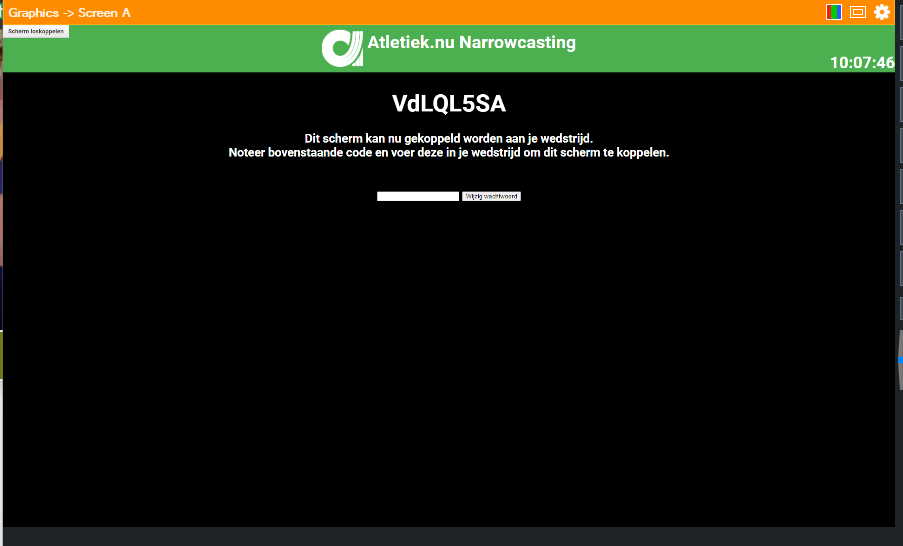
Step 2
Enter the pairing code in your competition in Athletics.app via the right menu -> digital signage, and create a new screen.
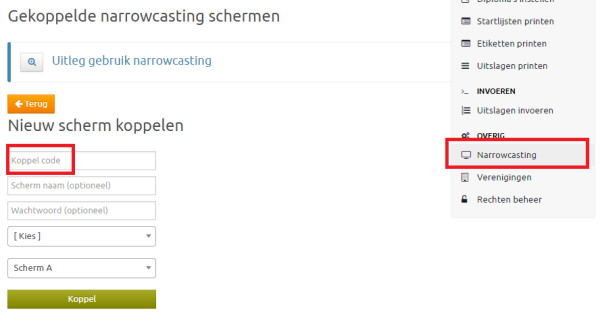
Give the screen a name that you can easily identify later, for example "TV Canteen left" and "TV Canteen right". For example, if you have a TV on the left and right side of the cafeteria. Next, choose a type of scoreboard. You can choose from: Large Scoreboard: This allows you to display one event at a time in full screen.
Large Scoreboard (4 split screens)
This allows you to display a maximum of 4 events simultaneously.
Publication board: Startlists
You can also hang a TV and display the startlists and heat schedules on it, replacing the old-fashioned bulletin board with paper startlists. This is often used indoors in the warm-up area and/or near the call room.
Notice board: Results
You can also hang a TV and display the startlists and heat schedules on it, replacing the old-fashioned notice board with paper startlists. This is often used indoors in the warm-up area and/or near the call room.
Step 3
After you have connected the screen, you can use the control panel to set exactly what should be displayed on which screen. You can choose from 26 individually controllable screens (A to Z).
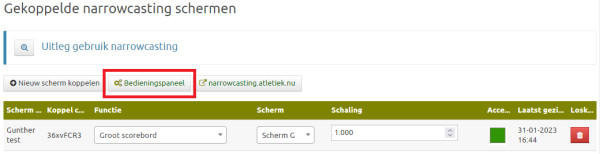
You can make the control panel as extensive as you like. You can determine exactly when you want to show what on the screen by continuously switching between events. But you can also make it easy on yourself and choose "Live scoreboard all from: Shot put". The results of the shot put will then be automatically displayed on that screen throughout the day while it is in progress. If you set up 4 split screens in this way, you will have highly professional information boards without having to worry about them during the competition. src="https://www.athletics.app/faq/?qa=blob&qa_blobid=6177926517496915104" style="height:327px; width:600px">
This has been automatically translated into English